
Invite a school to your hub
Invite a brand-new school, or a school already on Managira by its exact sign-in email, and follow the invitation until it's accepted.
A hub can have a set number of schools. You invite a school one of two ways: as a new school that sets up its account from your invitation, or as a school that already uses Managira.
Who can do this: Hub admins, and hub users with Invite schools. The school's manager accepts.
Start an invitation
Select Invite a school on the Overview, Schools or Invitations page.
The window shows how many places you've used (for example 2 of 5 places used). Choose New school or On Managira.
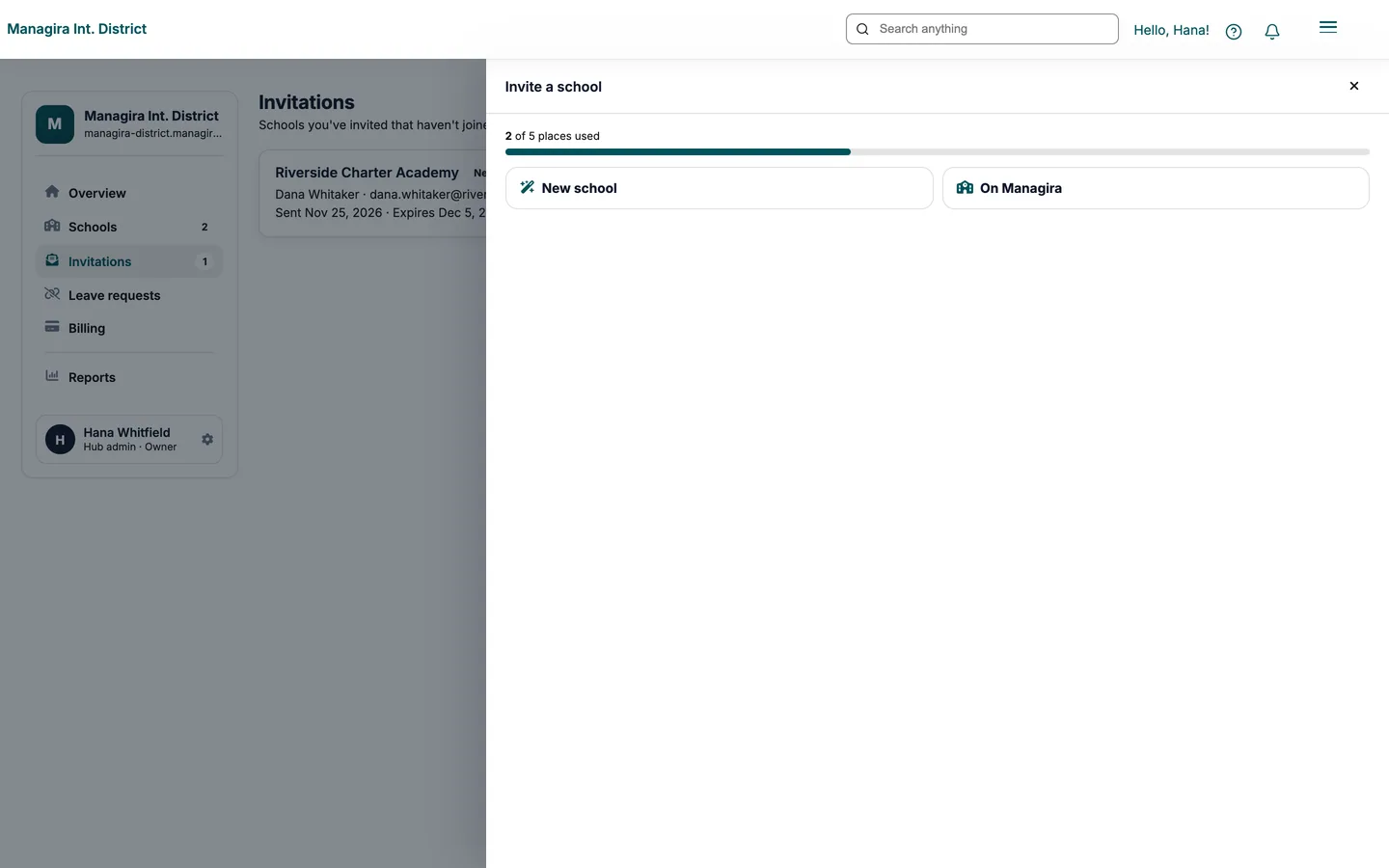
Two ways to invite.
Good to know: When all your places are used, Managira tells you. Contact support to add more.
Invite a new school
Select New school. Fill in the School name, Contact person and Contact email. Phone number, Hub contact and Message are optional.
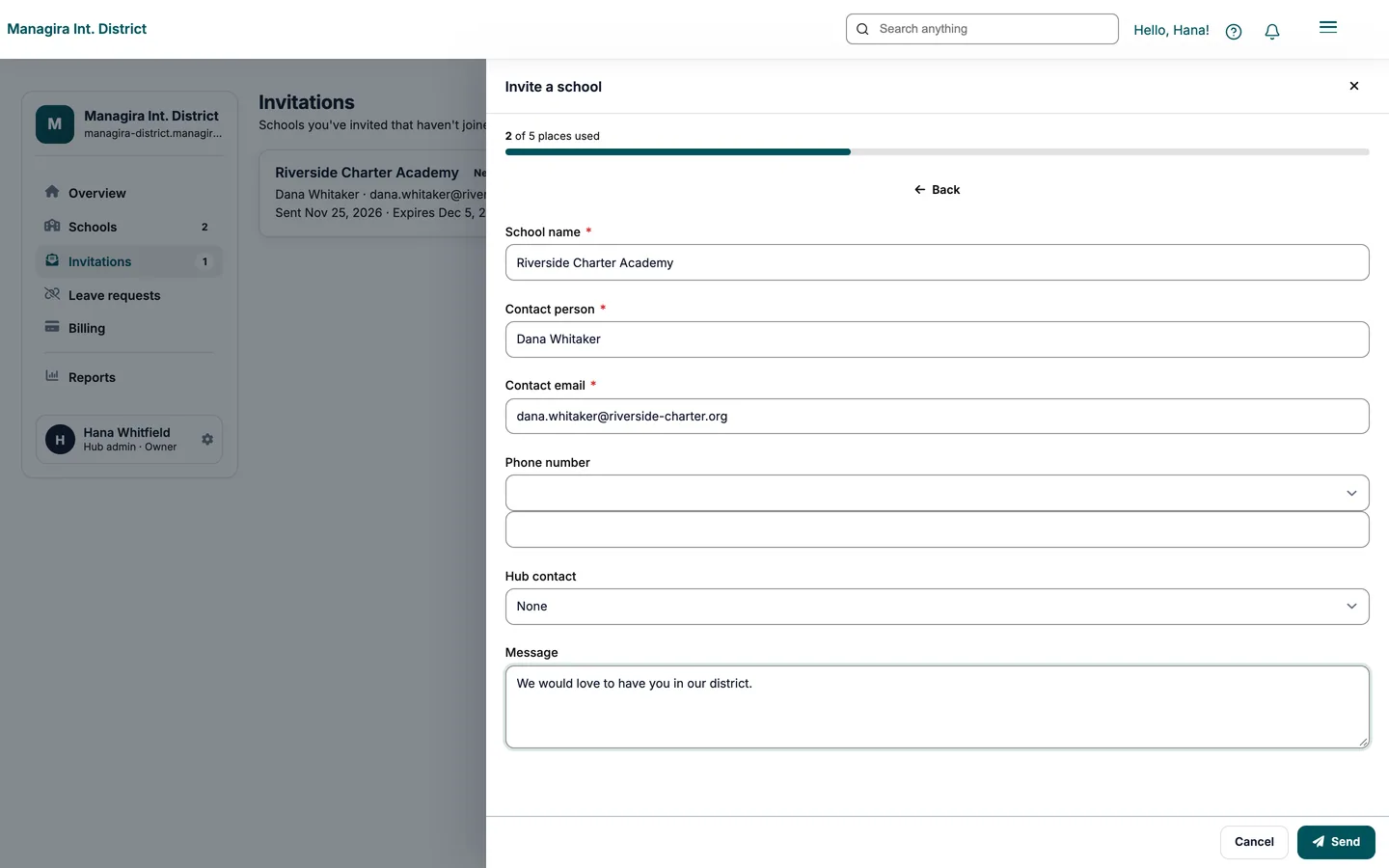
The new school form. Select Send. The contact person gets an email with a link.
Tip: Choose a Hub contact so the school knows who to call. They are shown in the school's Settings once you share them. See Hub settings and contact people.
Invite a school that is already on Managira
To protect every school's privacy, no page lists Managira's schools. You find one by the exact email it signs in with.
Select On Managira, then type the school's full sign-in email.
When the email matches, only the school's name is shown. Select Invite.
Good to know: The email must be the one the school's owner signs in with. You can't search by name, and the school's address is never shown to you.
Follow your invitations
Select Invitations in the menu. Each waiting invitation shows the school, whether it is a New school or an Existing school, the contact, and when it was sent and expires.
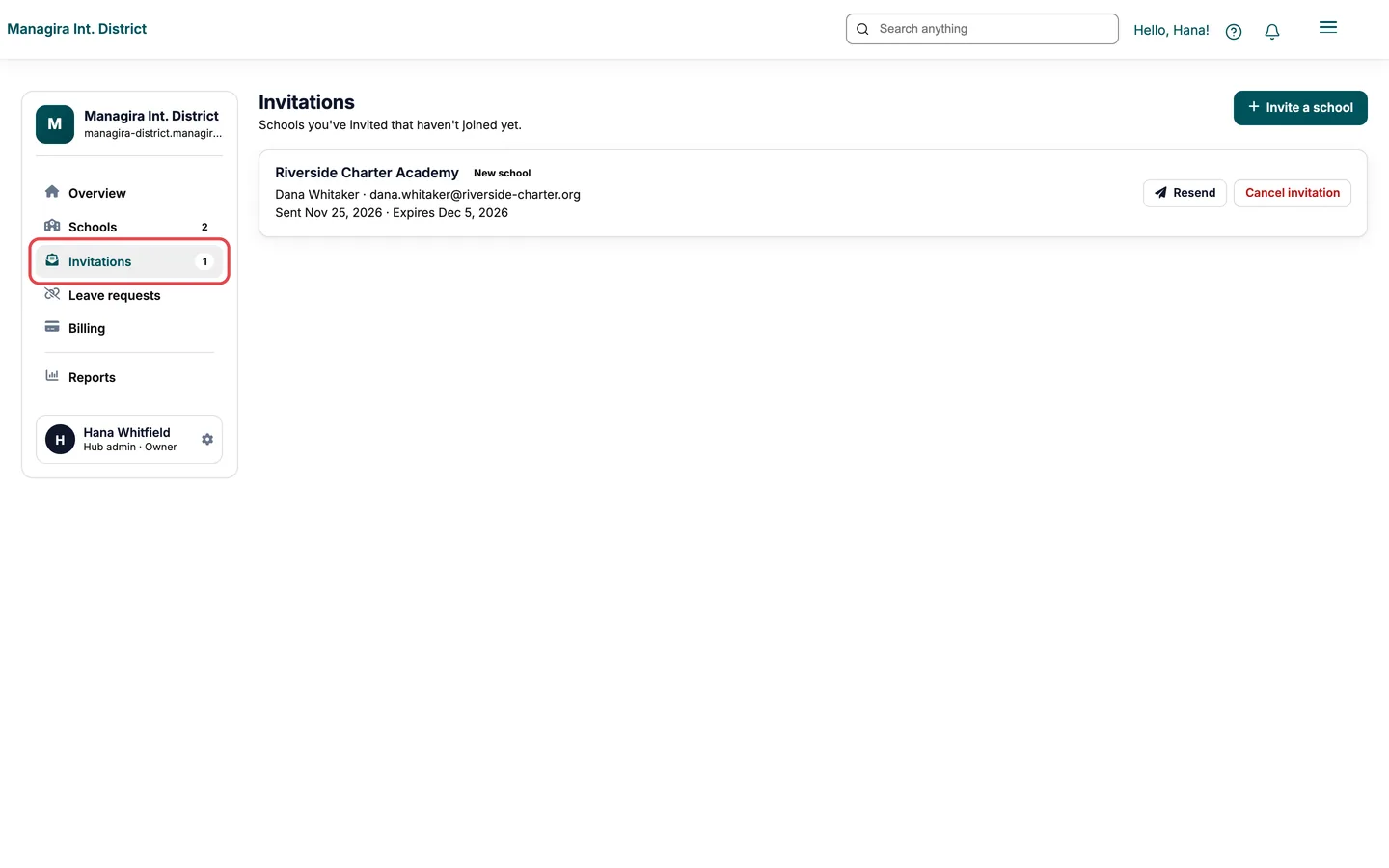
Invitations still waiting for an answer. Resend sends the email again. Cancel invitation withdraws it, after you confirm.
What the school does
Once accepted, the school appears under Schools and the invitation leaves the list. You are told by email if you chose that notification.
A new school
The contact person opens the link in the email.
They choose the school's nickname, then enter the manager's name, email, phone and a password.
They accept the Terms and the Privacy Policy and submit. The school is created inside your hub, with a web address under your hub's name.
A school already on Managira
The school's manager opens the link in the email. The page names your hub and lists what changes: the school's web address, billing by the hub, and its place in the hub.
It also says what stays the same: all its students, staff, classes and records, its sign-in, and control of day-to-day work.
The manager checks the box to confirm, then selects Accept & Join Hub. Decline turns the invitation down.
Frequently asked questions
The school says its link has expired.
Select Resend on the invitation, or cancel it and send a new one.
Managira says no school uses that email.
Check the spelling. It must be the email the school's owner signs in with, not a staff member's or a general office address. If the school is new to Managira, invite it as a New school.
Does the school lose its data by joining?
No. Its students, staff, classes and records stay as they are. Its web address and billing change, because the hub now pays for its plan.
Was this guide helpful?