
Start and run a trip
Press Go, follow the route on the map, open the stops list, switch to Google or Apple Maps, and keep the trip running.
Starting a trip shares your bus's position with families and staff, and opens a map that guides you stop to stop.
Who can do this: Drivers with a bus and a route assigned.
Start the trip
On Today's trip, check the route and select Go.
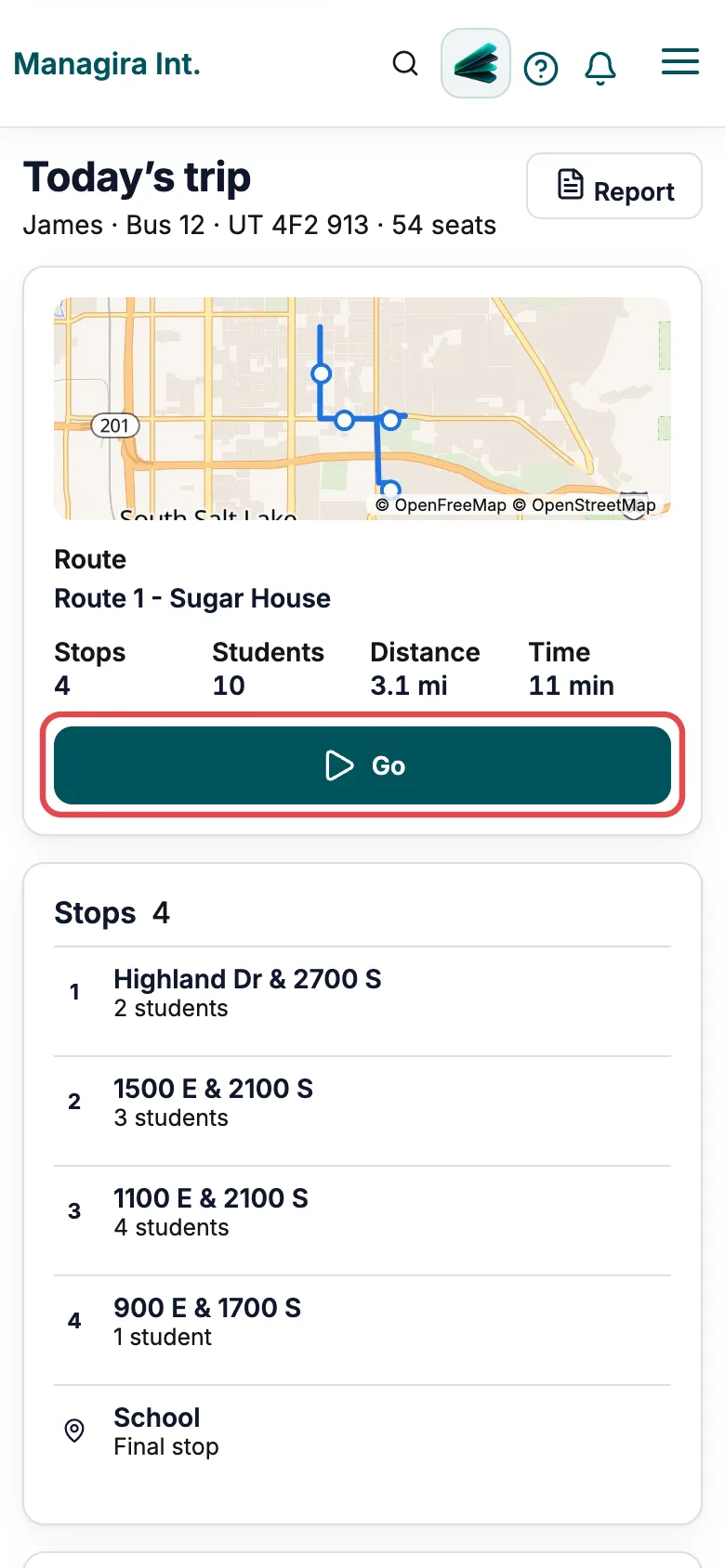
Go is under the route facts. If your phone asks to share your location, choose to allow it. Without location, families can't see the bus. The bottom of the map says Location is off, Finding GPS… or Weak GPS until it works.
The map opens under the app header. It shows the road through your stops, the next turn at the top, and the next stop, such as 1/4 Highland Dr & 2700 S.
Good to know: A trip can't start on a bus marked Maintenance or Out of Service, on a paused route, or if your driver profile is inactive. The app tells you which. Ask your transportation lead. Starting a new trip closes one you left running.
Use the map
The white bar names the next stop and its distance. Select it to open the stops list.
The round buttons on the right: minimize the map, turn it (heading up or north up), and show the whole route. Re-center appears when you've moved the map away from the bus.
At the bottom: minutes left, distance and arrival time, Navigate and End.
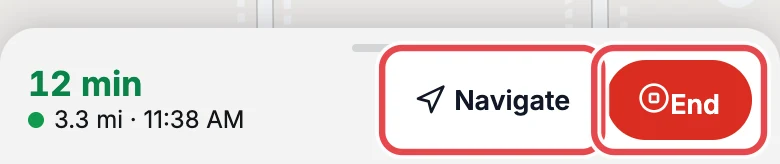
Time left, Navigate and End.
Open Google Maps or Apple Maps
Select Navigate and choose Google Maps or Apple Maps. Waze is listed when your school turned it on.
Your maps app takes over the screen. Families see an estimate of where the bus is until you return to Managira, because a web page can't send your position while another app is open.
Tip: Prefer to stay in Managira. Its own map gives turn-by-turn directions and keeps your position live for families.
Work with the stops list
Select the white bar to open the list. To go shows the stops left, with arrival times and the riders at each. Covered shows the ones done.
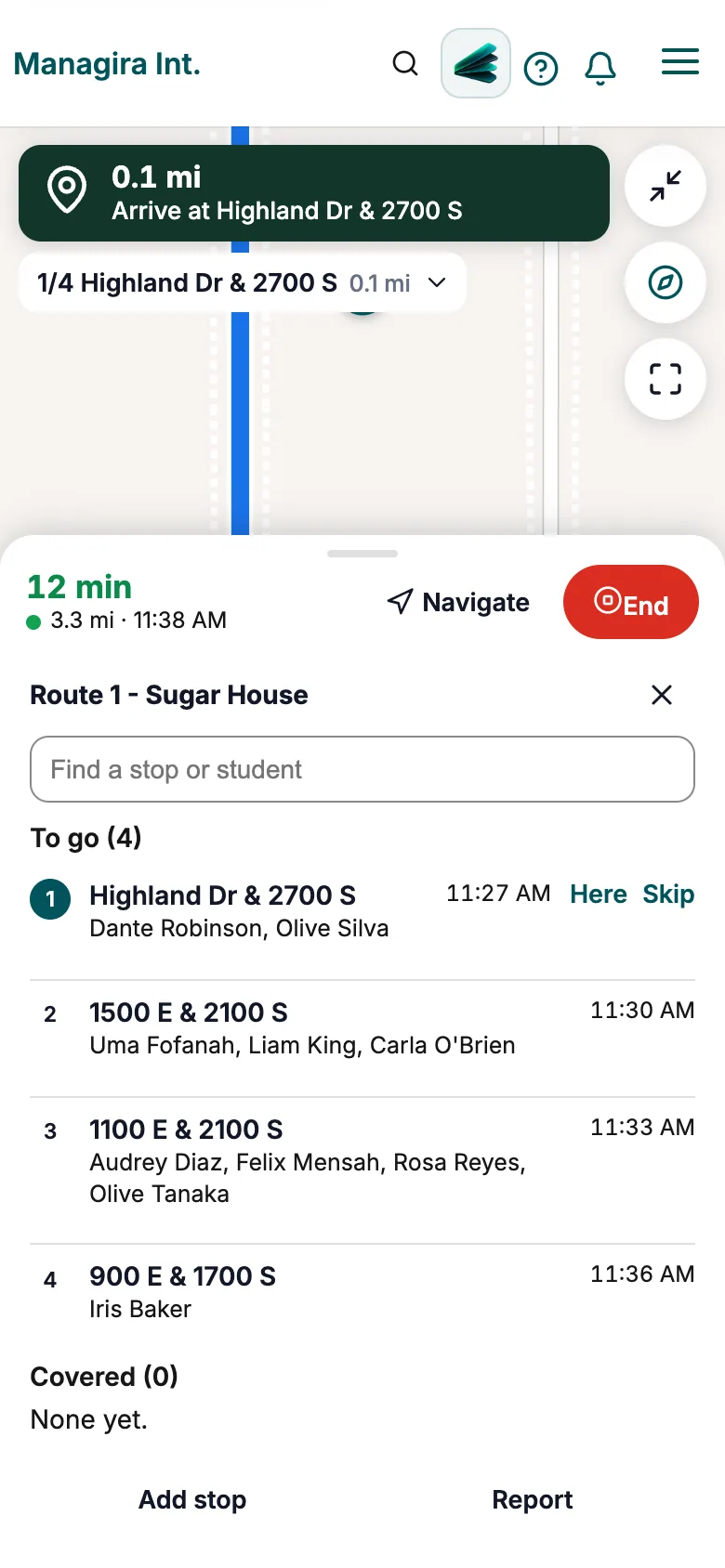
The stops list over the map. Here tells Managira you are at the next stop, so its boarding card opens. Skip skips it.
On a covered stop, Change lets you fix who boarded. Find a stop or student searches the list.
Add stop adds a stop for this trip only. Type an address or choose Use my location. It becomes the next stop and the route is planned again. Report opens the report form.
Important: A skipped stop's riders aren't counted as boarded, so they aren't asked about at the end.
Put the map away without stopping
Select the minimize button. The trip keeps running and families still see the bus. The dashboard shows Live, Open map and an End trip button.
If you close the page or lose signal, open Managira again. Your trip is still running and the map comes back.
Frequently asked questions
The map says Location is off.
Allow location for Managira in your phone's settings, then open the trip again.
Do I need to tap at every stop?
No. When the bus reaches a stop, its boarding card opens. Driving away counts everyone as boarded. See Boarding and arrivals.
Why can't I start a trip?
The bus is out of service, the route is paused, your profile is inactive, or the route isn't assigned to you. The message on screen says which.
Was this guide helpful?