
Find a page with Ctrl+K
Press Ctrl+K (Cmd+K on a Mac) and type a page's name to open it, without going through menus.
The page finder is a quick way to open any page in Managira. Type a few letters, press Enter, and you're there with that page's menu beside it.
Who can do this: Staff. The list holds only pages you can open.
Open and use it
Press Ctrl+K (Cmd+K on a Mac) on any page.
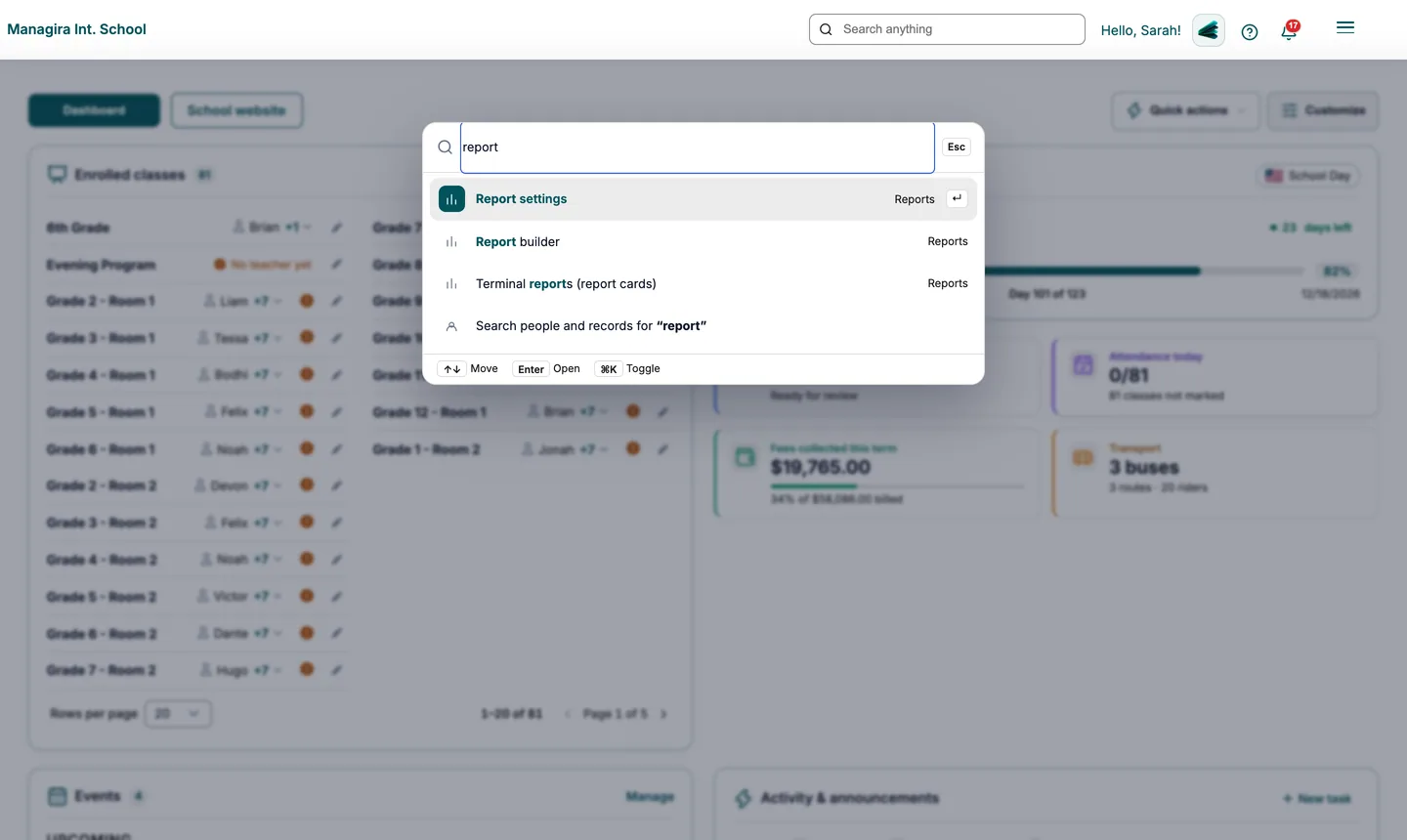
The finder opens in the middle of the page. Type part of a page's name, or a word people use for it, such as report, billing or attendance. Every word you type must match.
Use ↑ and ↓ to choose, then press Enter.
- Ctrl/Cmd+Enter opens the page in a new tab. Esc closes the finder.
- Pages you opened lately come first when the box is empty.
What it lists
- Only pages you can open. A teacher sees fewer pages than a manager. A driver sees only the driver pages, and Settings.
- Teachers and supervisors also see each of their own classes as a page.
- Settings sections open on the right section.
Looking for a person, not a page
The last row of the list hands your words to Search anything, to look for a student, parent, staff member or record. See Search anything and Search deeper.
Frequently asked questions
Nothing happens when I press Ctrl+K.
Click on the page first so it has focus. The finder is for signed-in staff, so it isn't on parent, student or public pages.
A page I use isn't in the list.
The list only has pages you can open. If a colleague has it, ask a manager to check your permissions.
Was this guide helpful?