
The contact form and its messages
Turn on the contact form, choose where messages are emailed, and read, answer and archive messages from visitors.
Visitors can write to your school from the website. Every message is emailed to the address you choose and also kept in Managira.
Who can do this: Managers, and staff given Manage Organization Settings › School website (on plans that include the school website).
Set up the contact form
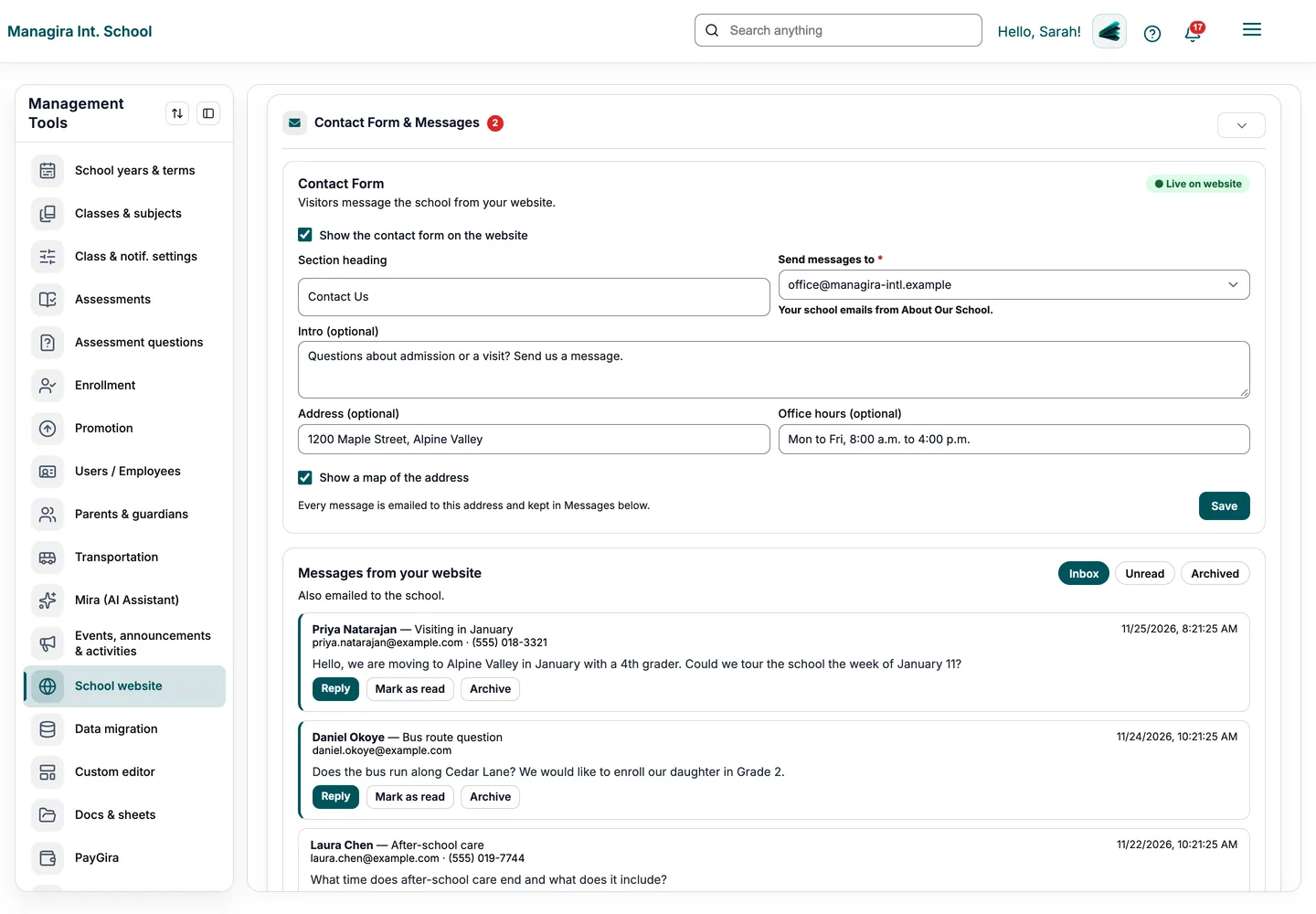
Open Contact Form & Messages in Management › School website.
Check Show the contact form on the website.
Choose where messages are emailed in Send messages to. It lists your school's emails, or choose Another email....
Fill in the Section heading, an optional Intro, your Address and Office hours. Check Show a map of the address if you want a map.
Select Save.
What visitors see
Visitors enter their name, email, an optional phone and subject, and a message. A short check confirms they are a person, and nothing needs clicking. Their message reaches you right away.
Read and answer messages
Under Messages from your website, use Inbox, Unread and Archived to switch between lists.
A red number beside Contact Form & Messages and a note in Website setup show how many are new.
On a message, select Reply to answer by email, Mark as read when you have seen it, or Archive to tidy it away. Restore brings an archived message back.
Frequently asked questions
Do I get an email as well?
Yes. Each message is emailed to the address in Send messages to and is also kept in Messages.
Spam?
Visitors must pass a short automatic check before they can send, which keeps most spam out.
Was this guide helpful?