
The app header: search, Mira, help, notifications and menu
What each button in the bar across the top does: Search anything, Mira, the help menu, the bell, the ☰ menu and Log out.
The header stays at the top of every page. From left to right: your school's name, Search anything, a greeting, Mira, the ? help menu, the bell and the ☰ menu.
Who can do this: Everyone signed in. Parents, students and drivers see a shorter header.
What is where
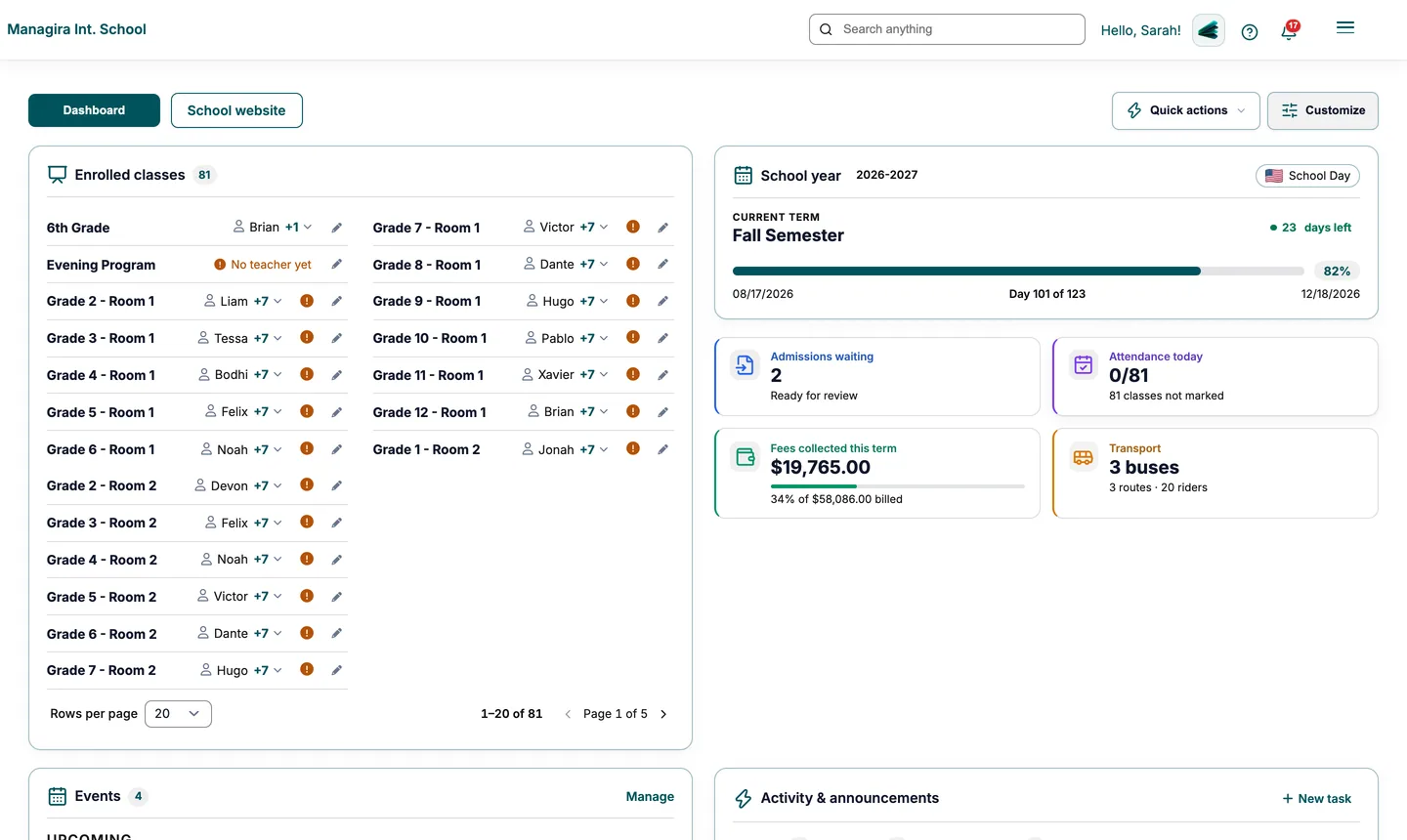
Search anything finds people and classes. See Search anything and Search deeper.
The Mira button opens your AI assistant beside the page.
The ? button opens the help menu.
The bell shows your notifications. The red number is how many you haven't read.
The ☰ button opens the menu of pages.
Notifications (the bell)
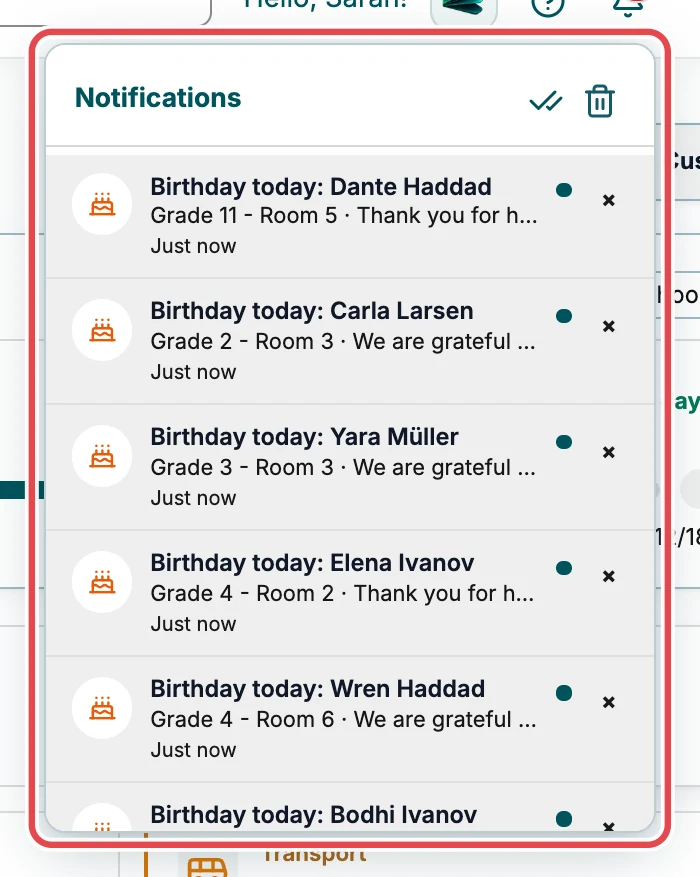
Select the bell. The panel lists your newest notifications, such as birthdays, tasks and alerts.
Select a notification to open what it is about.
Select the ✓ at the top to mark everything read, or the × beside one to remove it. The trash icon clears them all.
Good to know: Which alerts you get, and how, is your choice in Settings › Notifications. See Your notifications and alerts.
The ? help menu
- Guides opens these step-by-step guides in a new tab.
- Send feedback opens Settings › Feedback to tell Managira what to fix or what you need (staff only).
- Your access shows your role, classes and what you can do. See Your access. The school's own account doesn't have it.
- Two-step sign-in opens your authenticator app settings, for managers and people with Settings access. See Two-step sign-in.
The ☰ menu
The menu lists only what you can open, so yours may be shorter. A manager sees:
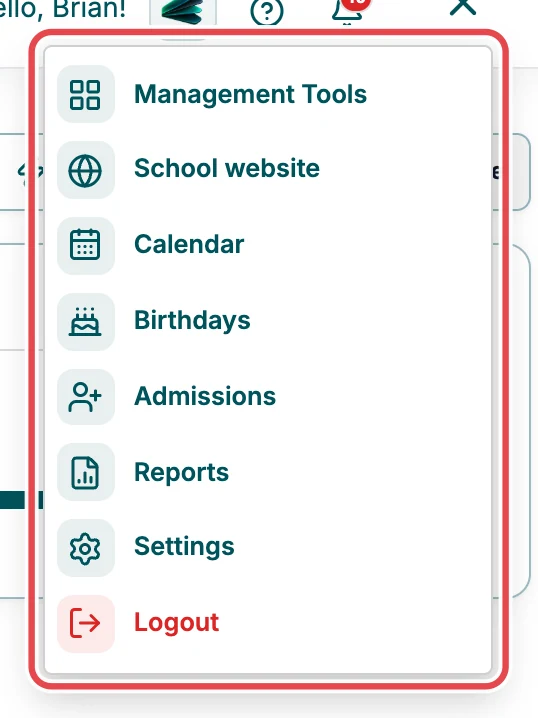
- Management Tools, Admissions and Reports: the workspaces. See Find your way around.
- School website: your public website, in a new tab.
- Mailroom: messages to families (with the Mailroom permission). See Mailroom.
- Calendar: your calendar and tasks. See Calendar and tasks.
- Birthdays: who has a birthday this week. See Birthdays.
- Settings: your profile and your school's settings. See Your profile and appearance.
- Logout.
Good to know: Your school may also show a Sandbox switch here while a data migration is open. Parents, students and drivers have their own, shorter menus. See What each person can do.
Mira
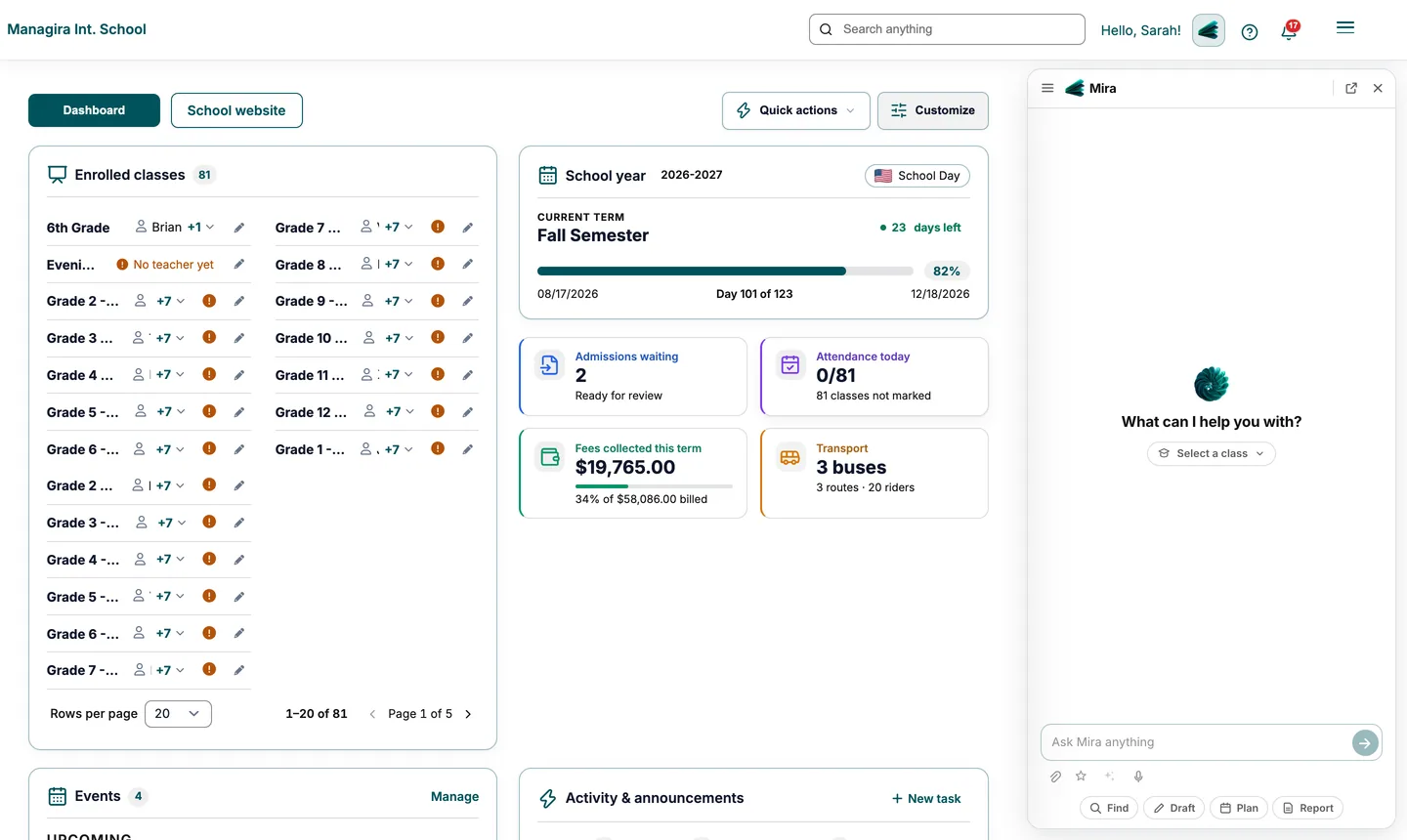
Select the Mira button.
Ask your question. Use Open in a new tab in Mira's bar for the full page, or Close to put it away. Mira stays open as you move between pages.
Good to know: If your school hasn't turned Mira on, or you haven't been given it, the panel says so and tells you who to ask. See Mira, the AI assistant.
Log out
Open the ☰ menu and select Logout.
Select Log out to sign out, or Cancel (or press Esc) to stay signed in. Anything not saved on the page is lost.
Tip: Always log out on a shared computer. Closing the tab doesn't sign you out if you checked Keep me logged in.
Frequently asked questions
Why is there no Search box on my phone header?
On a narrow screen the search box folds into a search icon. Tap it to open the box.
Why did the bell number go up on its own?
Notifications arrive while the page is open: tasks assigned to you, alerts you chose, and birthdays.
Why can't I see the Mira button's panel?
Mira has to be on for your school, and you need your own Use Mira permission. Ask a manager.
Was this guide helpful?