
Driver settings, alerts and Forms
Change your photo and phone, choose how you hear about riders who aren't coming, and fill in the Forms your school made for drivers.
Your settings page is the same as a parent's or student's: appearance, your details and notifications.
Who can do this: Drivers.
Open your settings
Select ≡ and choose Settings.
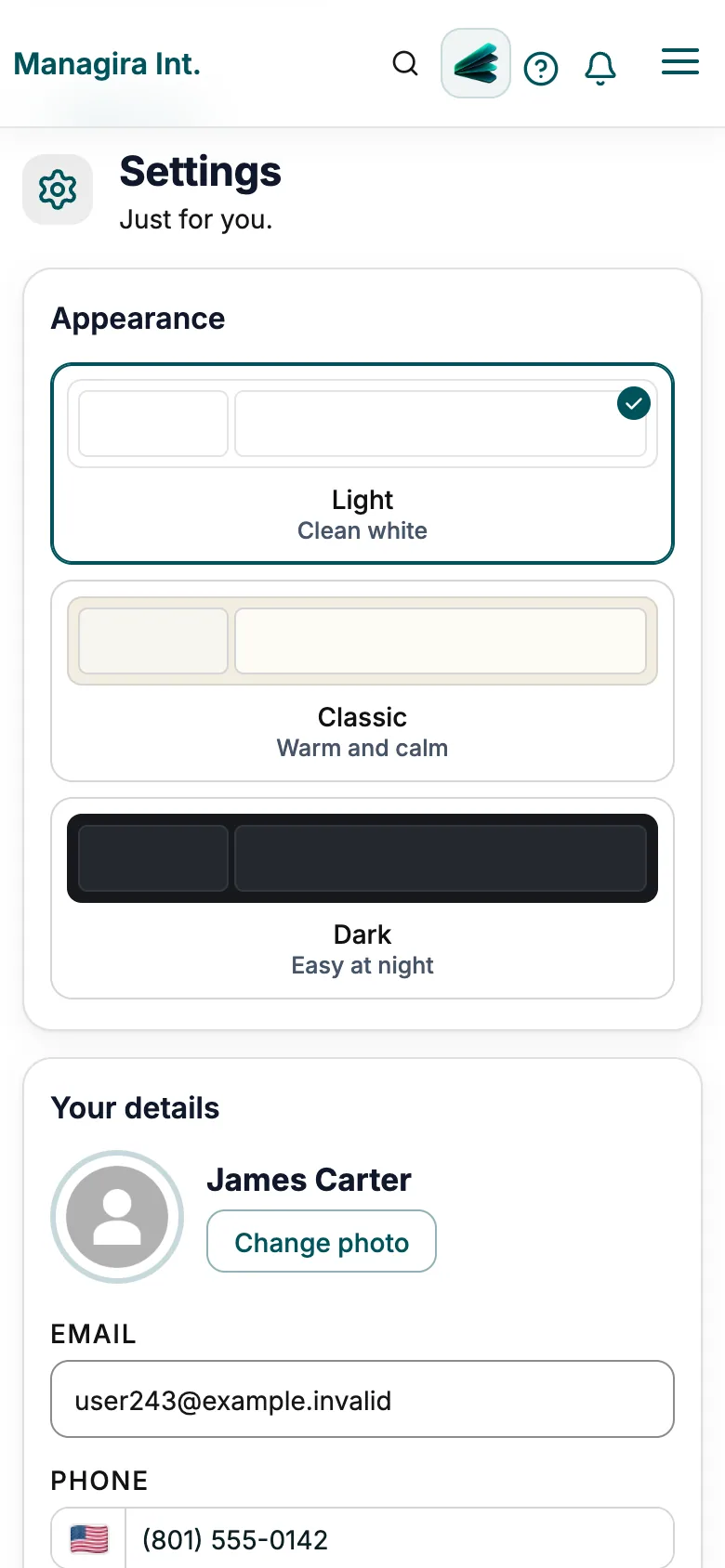
Driver settings.
Your details
Select Change photo to add or replace your picture. Families and staff see it on the bus's card.
Your email is shown but you can't change it here. Update your Phone and select Save.
Appearance at the top of the page changes the look of the app on your phone.
Alerts
Under Notifications, Bus has A rider isn't coming. Turn on In Managira (the bell) or Email, then select Save notifications.
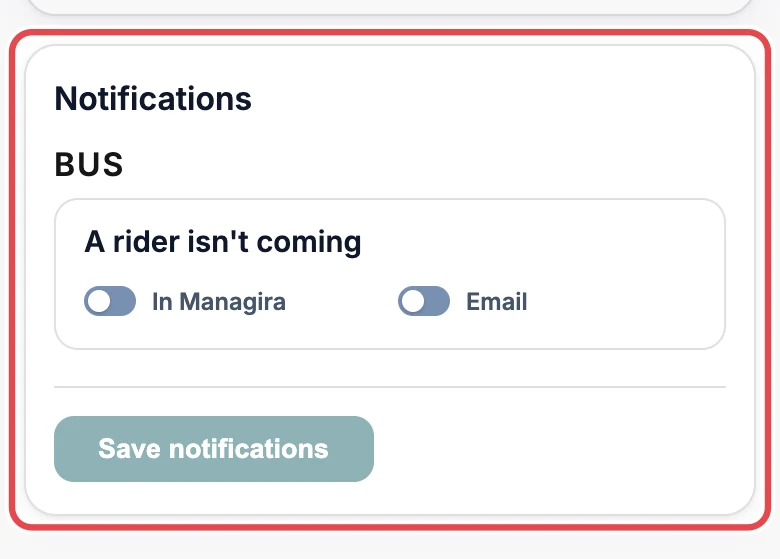
The rider alert. By default you're told in Managira, and nothing is emailed or texted until you ask. A text option shows only if your school has a text provider.
Forms
If your school built a form for drivers in the Custom editor, a Forms card appears on the dashboard, below the students. A form with its own tile gets a card of its own.
Open a form, choose a student, answer, and save. You only see your own riders.
Good to know: If you don't see a Forms card, your school hasn't made a form for drivers.
Was this guide helpful?