
Pay your child's school bills
See what each child owes, pay a bill or part of it, and get an invoice or receipt.
The PayGira page lists every bill for all your children in one place.
Who can do this: Parents and guardians, where the school uses PayGira.
Find your bills
Tap the menu, then PayGira.
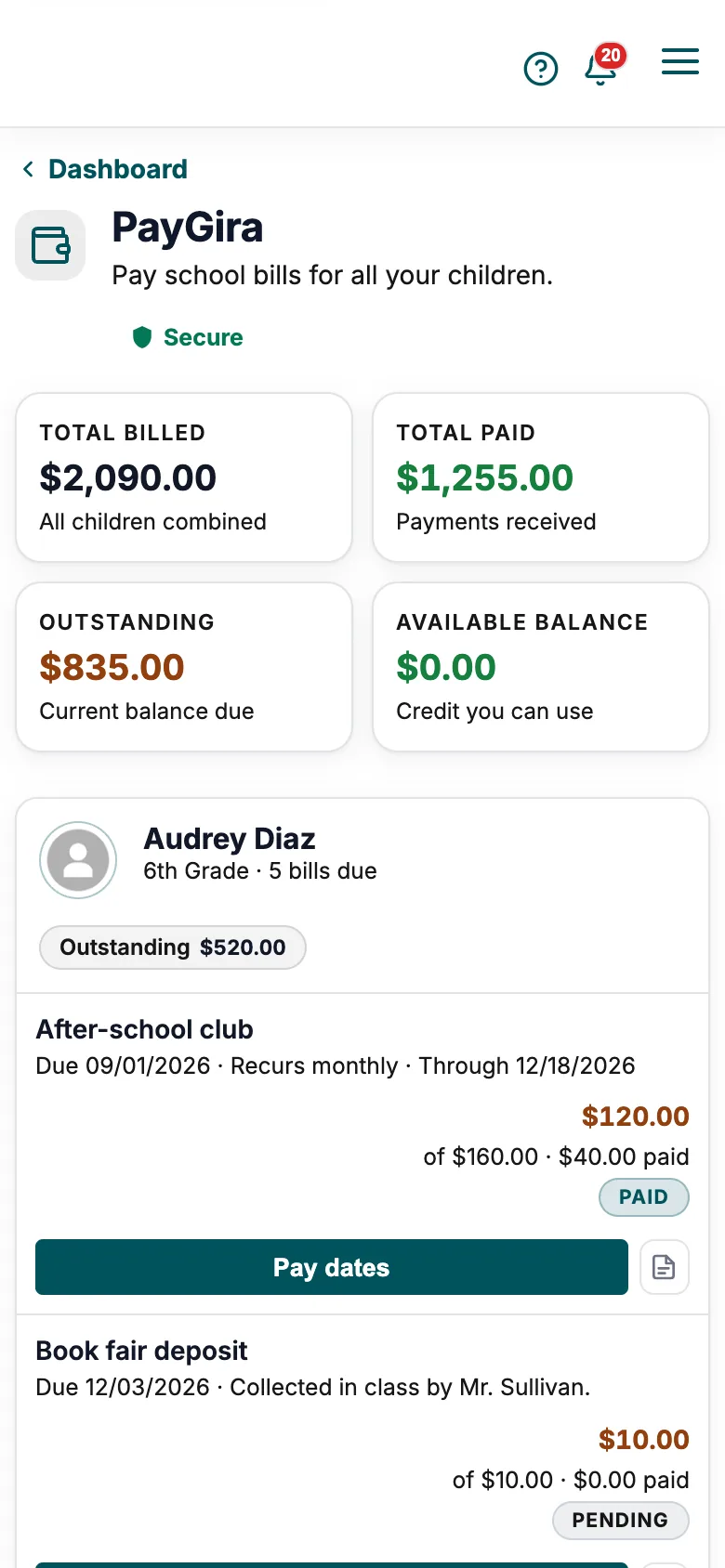
Totals at the top, then a card for each child. The four boxes show Total billed, Total paid, Outstanding and Available balance (credit you can use), for all children together.
Under them, each child's card lists their bills with the amount left, how much is paid and a badge such as Paid, Partial or Pending.
Pay a bill
Tap Pay on the bill (Pay dates on a bill that repeats).
Check the Amount. You can pay part of a bill by typing less. Choose Pay with and follow the steps.
When the payment goes through, the bill and your totals update.
Good to know: Which ways to pay you see depends on your school. It can offer a card, other online ways and paying at the school office (cash). If the school takes cards, you can also save one in Settings for faster payments.
Invoice and receipt
Tap the small page icon beside a bill for its invoice, or a receipt after you have paid. Recent Payments at the bottom lists your payments.
Frequently asked questions
Why does my child's card say Outstanding?
It is what is still owed for that child's bills.
I paid in cash at the office.
The school records it, and it shows here when they do.
Is my card number kept?
Only the last 4 digits are stored and shown.
Was this guide helpful?